The Causes Of Lines On Prints Or Scans & Fixes
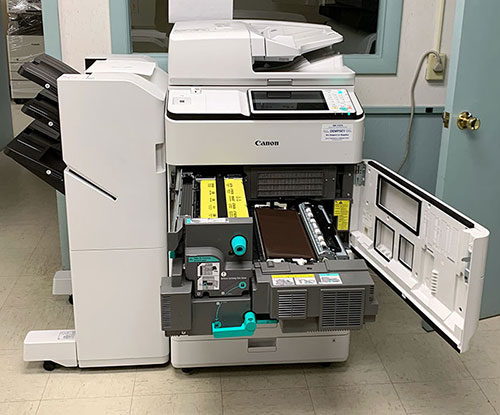
Laser printers, which range in size from small desktop devices to workgroup-class multi-function copiers, should provide the company with years of trouble-free output. Before you believe the worst, start troubleshooting with basic possibilities if your trustworthy hardware begins printing pages with vertical or horizontal lines that aren't part of the content you printed. Looking at the orientation of the marks can help to ascertain what parts may be causing them.
Roller Marks
When toner from a cartridge spills into the printer's mechanical assemblies, it can contaminate the rollers that pass paper through the paper path. This contamination creates a "tire-tracks" pattern that appears at the edges or in the center of a sheet which corresponds to the direction of the rollers in relation to the paper-feed course. This is better handled by a service tech.
Streaking Lines
When the print quality is set too low on a project, it may result in streaking lines. You can improve the print quality by going to the printer's choices in your PC's control panel and system settings. On your Canon printer, go to "Options" and then "Advanced Options," then adjust the quality settings using the drop-down menu. Make sure the "Fast Draft" or "Low" are not picked, and instead choose "High" or "Best Quality" for printing. When working with images, make sure the resolution and dots per inch (DPI) ratio are set correctly before printing. Before printing a project, you can also adjust the quality settings by clicking the "Preview" tab.